📊 Power BI Data Preparation & Transformation Essentials
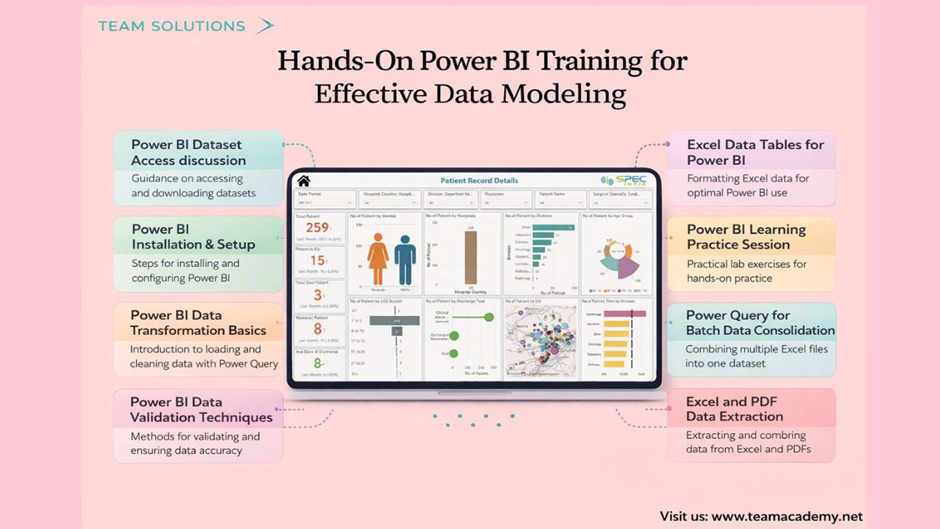
This session delivered a hands-on introduction to working with Power BI datasets, focusing on data access, validation, and transformation using Power Query. Participants learned how to prepare clean, reliable data—the foundation of accurate reporting and impactful dashboards.
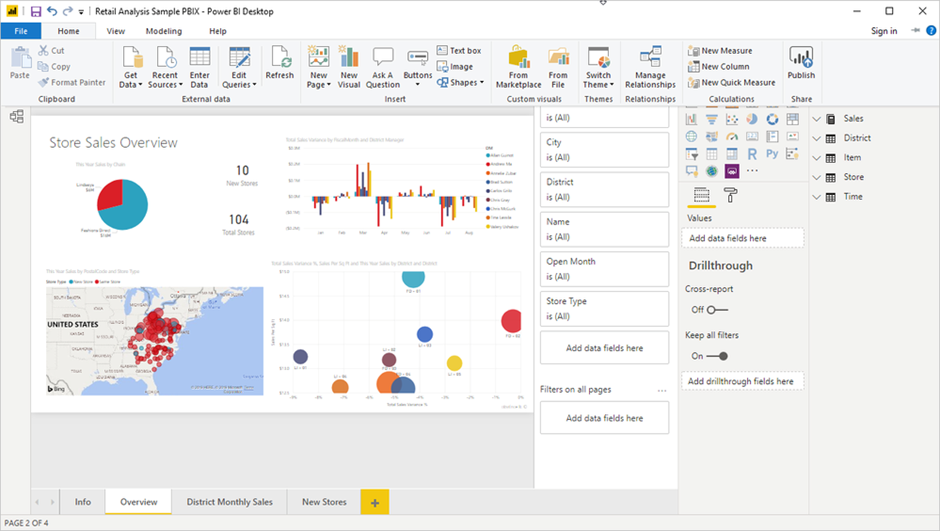
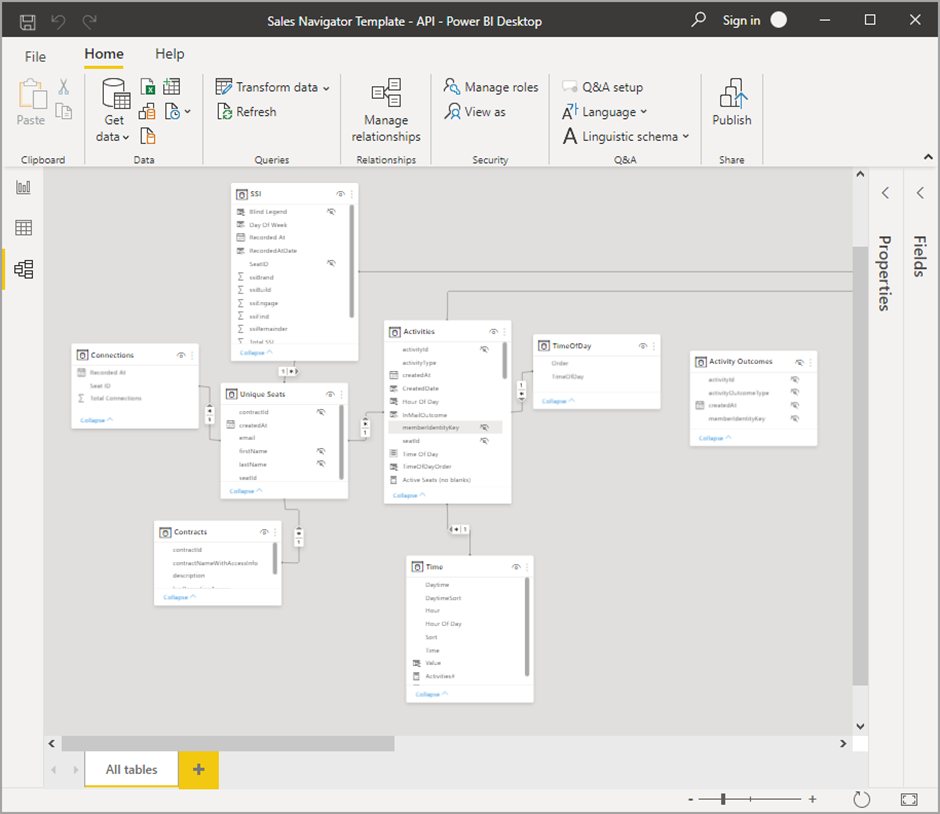
🔗 Accessing Power BI Datasets
The session began with clear, step-by-step guidance on accessing the course dataset provided by Team Academy.
Participants learned how to:
🌐 Download datasets via the shared URL
📁 Locate files in the Downloads folder
🗜️ Extract and rename the folder as “Power BI Dataset”
🖥️ Prepare files for use in Power BI Desktop
The entire process took just 1–2 minutes, ensuring everyone could follow along smoothly.
⚙️ Power BI Installation & Setup
Before diving into data transformation, the team ensured all learners were set up correctly.
Key setup actions included:
Opening Power BI Desktop
Checking the installed version
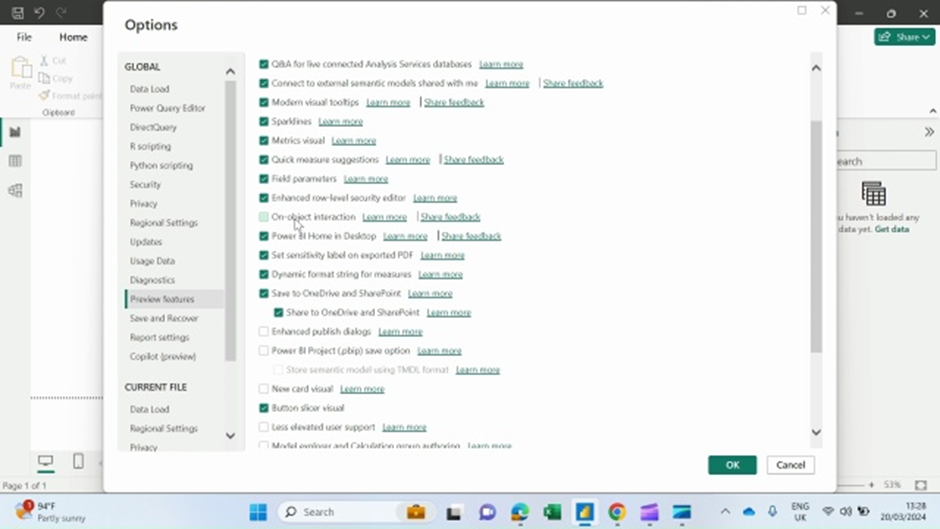
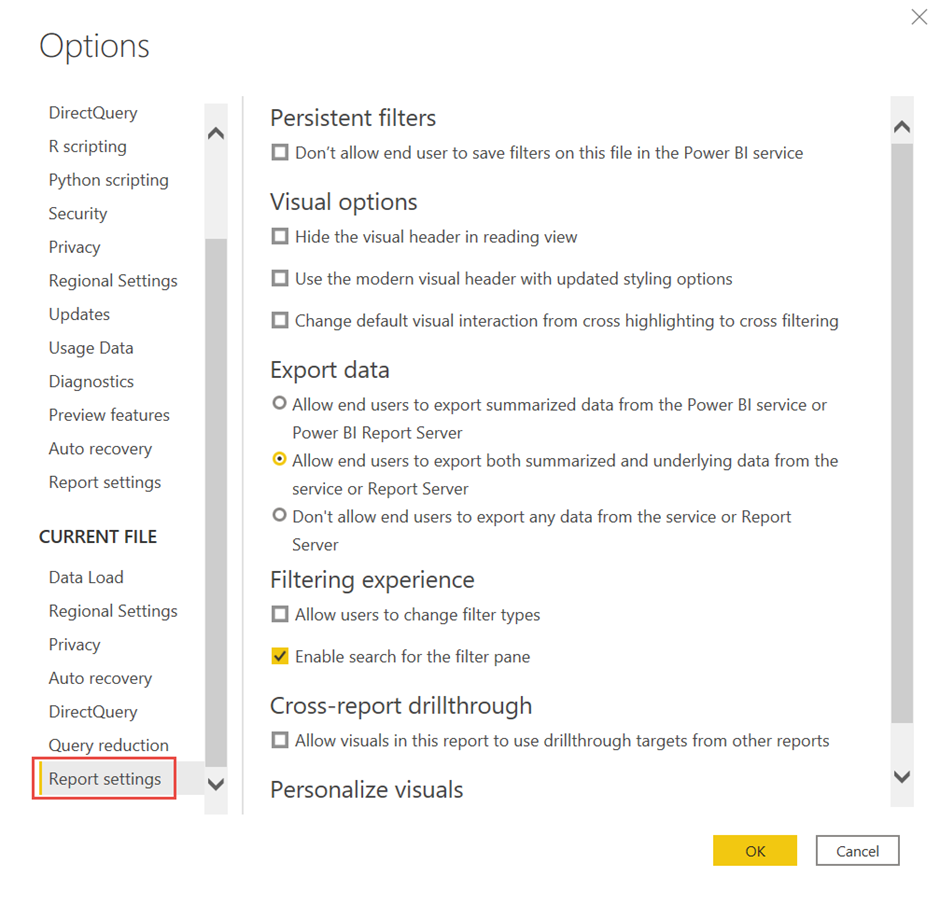
🔍 Enabling Preview Features via the Help menu
🔄 Restarting Power BI to activate new capabilities
💡 Learners were advised to use Windows laptops for upcoming lab sessions to ensure full functionality.
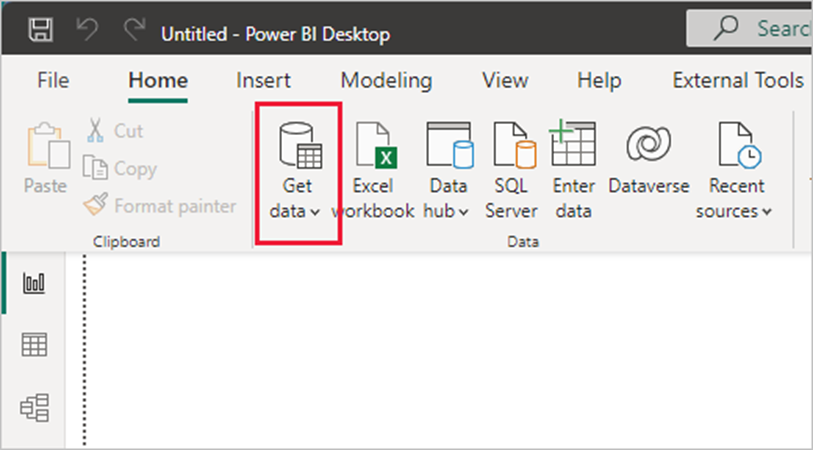
🧹 Power Query: The Data Preparation Engine
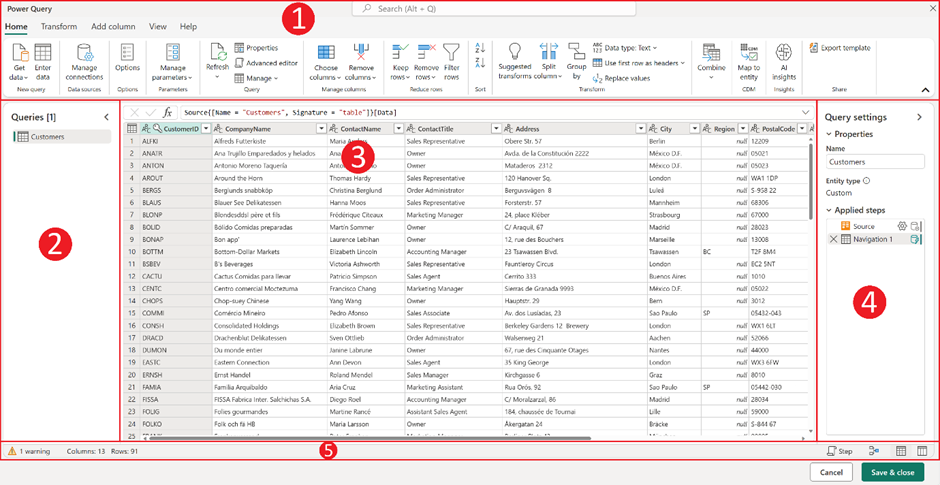
Power Query was introduced as the heart of data transformation—often described as a “data kitchen” where raw data is cleaned and prepared before analysis.
Participants explored:
Loading data from Excel workbooks
Selecting specific tables instead of entire sheets
Avoiding unnecessary or unclean data at source
Understanding why clean inputs lead to better outputs
👨🍳 Clean data in → trusted insights out.
✅ Data Validation Before Cleaning
Rather than jumping straight into cleansing, the session emphasized validating data first.
Validation techniques covered:
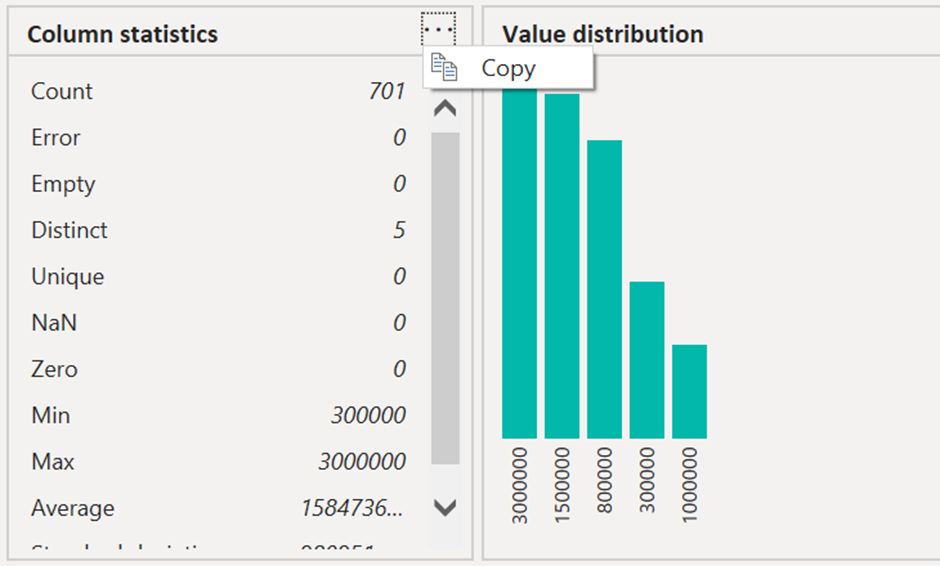
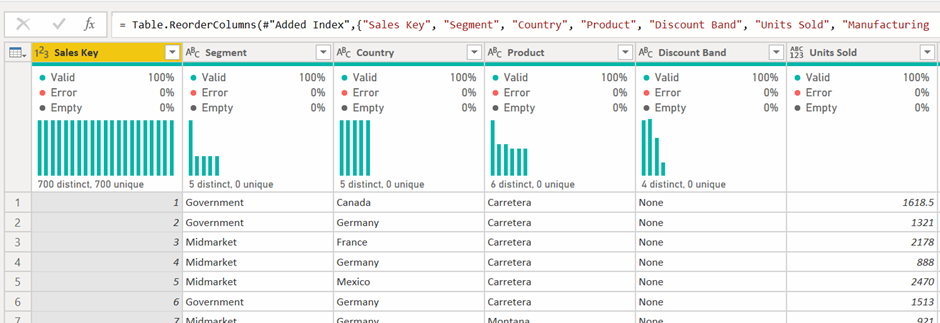
📊 Column statistics
📈 Value distribution
➗ Totals, averages, and standard deviation checks
🧠 Validating metadata instead of entire large datasets
This approach saves time and significantly reduces reporting errors later.
📑 Excel Tables vs Sheets: A Critical Difference
Learners explored why formatting data as Excel tables is essential for efficient Power BI workflows.
Key takeaways:
Tables load cleaner than full worksheets
Structured data reduces transformation effort
Proper formatting improves long-term maintainability
❓ Questions were encouraged to ensure clarity before moving ahead.
🔄 Combining Multiple Files with Power Query
Hands-on exercises focused on consolidating data efficiently.
Participants practiced:
Merging Sales 2022 and Sales 2023 datasets
Appending files with identical column structures
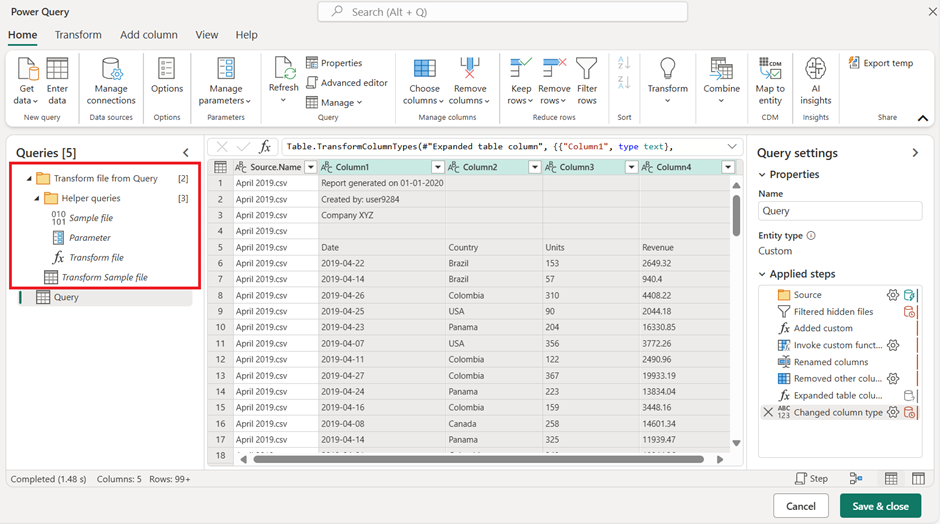
📂 Using folder-based loading to automate recurring data updates
🚀 This method is ideal for organizations handling frequent or large-scale data imports.

📂 Extracting Data from Excel & PDF Files
The session also introduced advanced extraction scenarios.
Learners learned how to:
Load data from multiple Excel files
Extract structured tables from PDF documents
Combine different file types into a single dataset
📌 Practice exercises were assigned to reinforce learning before the next class.
🧪 Practice, Repeat, Master
To strengthen learning outcomes, participants were encouraged to:
🔁 Repeat lab exercises
🎥 Review session recordings
📊 Practice with their own datasets
📅 Upcoming sessions will be held online, supporting flexibility during the instructor’s travel.
🎯 Key Takeaways
✔ Clean data is the foundation of effective BI
✔ Power Query is essential for scalable data preparation
✔ Validation before cleaning saves time and errors
✔ Hands-on practice accelerates mastery
📌 Practice consistently, think like a data professional, and insights will follow.
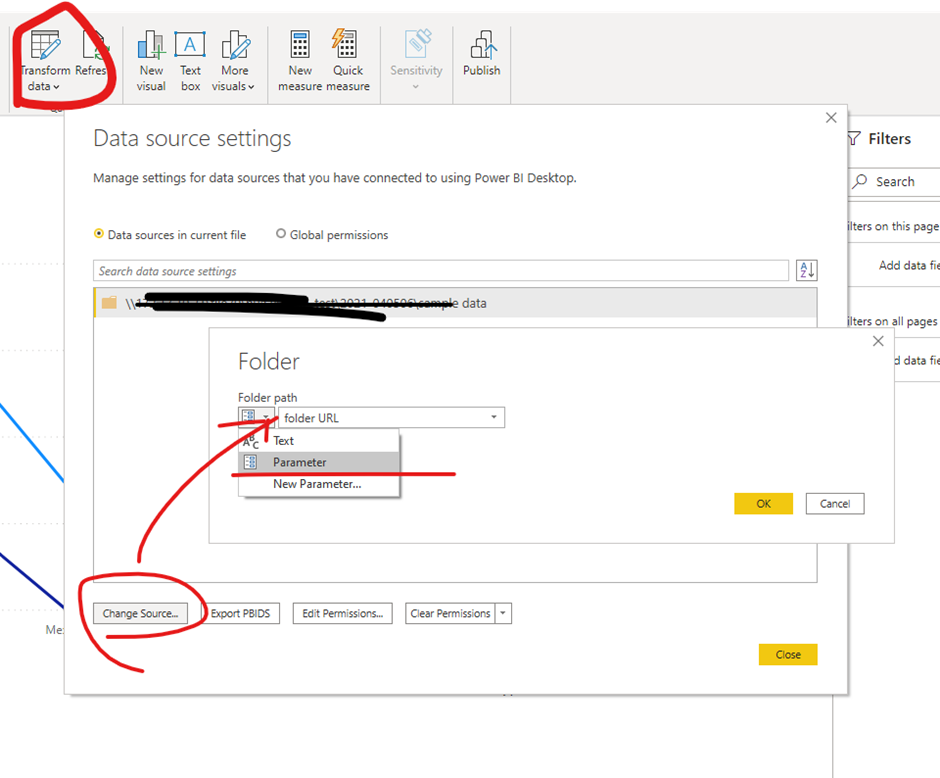
Need assistance with power query file source change
My question is if I have 5 to 6 files and I need to change their sources in one go instead of changing each file's source separately and all the files are in the same source of folder. How to do it?