📊 Power BI in Action: Data Consolidation, Transformation & Reporting Strategies for Smarter Business Insights
In today’s data-driven environment, organizations are looking beyond basic dashboards—they want automated, reliable, and intelligent analytics pipelines. In our latest team session, we took a deep dive into how Power BI and Power Query can be used to create a streamlined, scalable, and insightful data analysis process, from messy inputs to meaningful visualizations.
Whether you’re building executive dashboards, integrating ERP data, or automating weekly reports, this blog breaks down the key takeaways from our discussion and training.
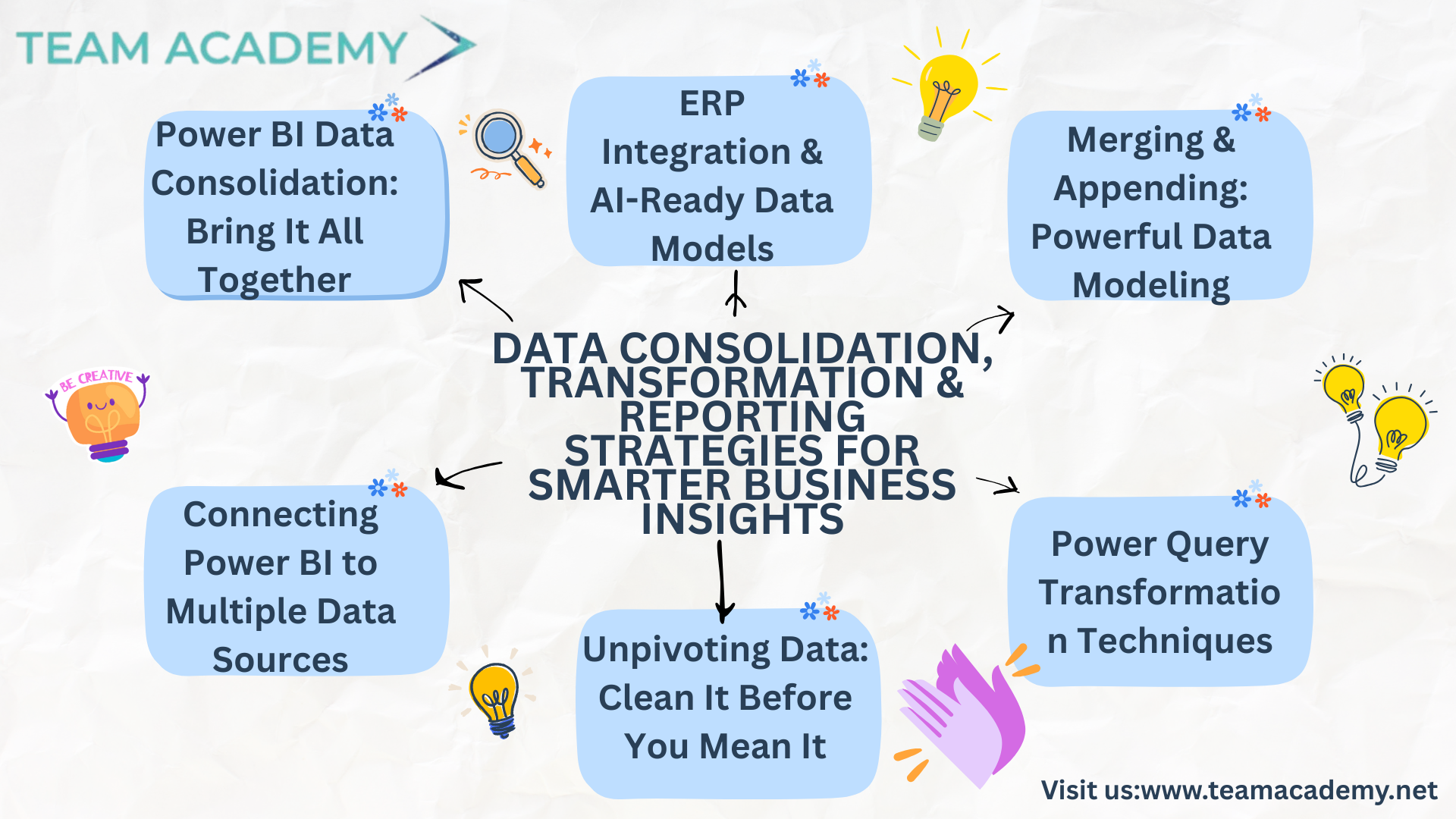
🔗 Power BI Data Consolidation: Bring It All Together
The team kicked off by demonstrating data consolidation techniques, focusing on merging datasets from:
PDF reports
Outlook emails
OneDrive folders
📁 Using Power Query, we showed how these inputs can be harmonized into one central dataset—critical for departments handling repeated monthly or weekly reports. The key is template consistency. If your PDFs and Excel sheets follow a standardized layout, automation becomes seamless.
🌐 Connecting Power BI to Multiple Data Sources
We explored data source connectivity across a variety of environments:
SharePoint Lists (recommended for structured data entry)
Websites and APIs
On-premise databases via native connectors
Cloud-based systems using OData feeds
✨ The session highlighted SharePoint’s advantage for business users—it offers consistent structure with version control, ideal for cross-functional collaboration.
🔄 Unpivoting Data: Clean It Before You Mean It
Unpivoting may sound technical, but it’s essential for any real data analysis. We used examples like:
Electricity usage
Call center metrics
Monthly sales reports
📌 Unpivoting transforms wide-format spreadsheets into attribute-value pairs—the foundation of most visualizations in Power BI.
🧠 Did You Know? Use "Unpivot Other Columns" when expecting your data to grow with more time periods or new variables—this futureproofs your dashboards.
🔁 Power Query Transformation Techniques
We shifted gears into data shaping:
Splitting columns (by delimiter, position, or number of characters)
Adding calculated fields (e.g., Hours x Price)
Formatting currency, dates, and text values
Grouping by categories such as flight routes or product categories
The beauty of Power Query? No need to write formulas. You manipulate data with just a few clicks.
⚙️ Merging & Appending: Powerful Data Modeling
We covered how to:
Append multiple Excel sheets or files into one table
Merge datasets using left outer joins (e.g., resource names with working hours and pricing)
Prioritize data sources when combining records
This is where Power BI starts to replace traditional tools like VLOOKUP and manual spreadsheet merging.
💬 “Merging is the heartbeat of data modeling in Power BI,” one team member noted.
🧠 ERP Integration & AI-Ready Data Models
We ventured into advanced territory, discussing integration with ERP platforms such as Oracle Fusion and handling cloud-based vs on-premise systems.
While technically challenging, the benefits of combining structured ERP data with Power BI visualizations are massive—from cost control to forecasting. With the right connectors and data policies, organizations can set up predictive analytics pipelines.
💬 Heads-up: Expect more application-level integration and possibly developer support when working with complex ERP platforms.
📆 What’s Next? Upcoming Lab Exercises & Real-Time Dashboards
To help reinforce these skills, the team announced:
🔬 Hands-on lab sessions next week focused on transformation exercises
📊 Development of real-time dashboards
🧪 Continued exploration of descriptive, inferential, and predictive statistics
🧠 Tips for incorporating machine learning models into BI pipelines
Final Takeaway 💡
📈 Want to automate your reports, improve data hygiene, or create executive-ready dashboards? Start with consistent templates, clean with Power Query, and never underestimate the power of a well-designed data model.
👉 Course details : Click here